> ## Documentation Index
> Fetch the complete documentation index at: https://docs.trysixth.com/llms.txt
> Use this file to discover all available pages before exploring further.
# Installing Sixth
> Sixth is a VS Code extension that brings AI-powered coding assistance directly to your editor. Install using one of these methods:
### Installation Options
* **VS Code Marketplace (Recommended):** Fastest method for standard VS Code and Cursor users.
* **Open VSX Registry:** For VS Code-compatible editors like VSCodium.
### 🛠️ VS Code Marketplace: Step-by-Step Setup
Follow these steps to get Sixth up and running:
1. **Open VS Code:** Launch the VS Code application.
> ⚠️ **Note:** If VS Code shows "Running extensions might...", click "Allow".
2. **Open Your Sixth Folder:** In VS Code, open the Sixth folder you created in Documents.
3. **Navigate to Extensions:** Click on the Extensions icon in the Activity Bar on the side of VS Code (`Ctrl + Shift + X` or `Cmd + Shift + X`).
4. **Search for 'Sixth':** In the Extensions search bar, type `Sixth`.
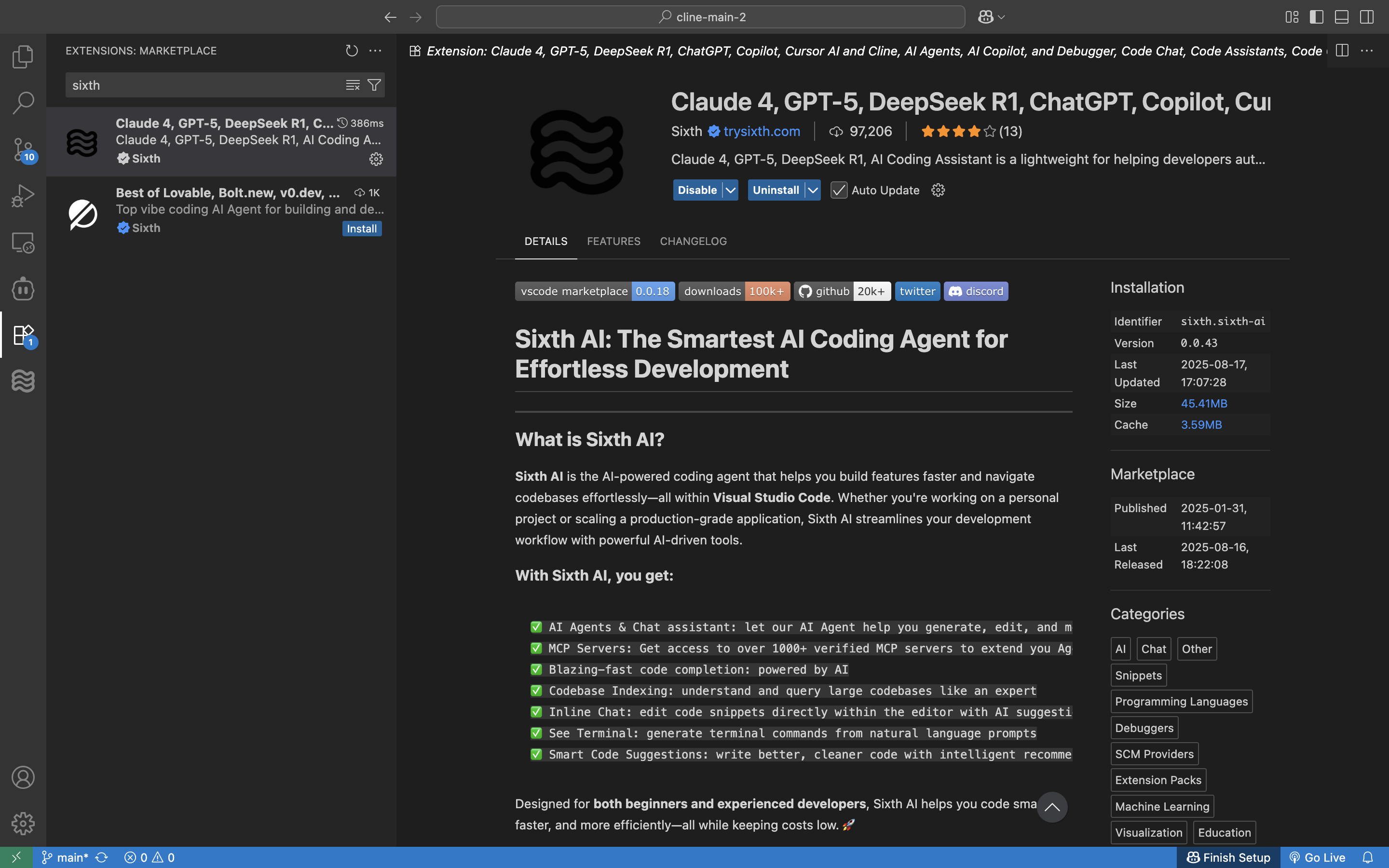 1. **Install the Extension:** Click the "Install" button next to the Sixth extension.
2. **Open Sixth:**
* Click the Sixth icon in the Activity Bar.
* Or, use the command palette (`Ctrl/Cmd + Shift + P`) and type "Sixth: Open In New Tab" for a better view.
3. **Troubleshooting:** If you don't see the Sixth icon, try restarting VS Code.
> ✅ **Pro Tip:** You should see the Sixth chat window appear in your VS Code editor!
### 🌐 Open VSX Registry
For VS Code-compatible editors without Marketplace access (like VSCodium and Windsurf):
1. Open your editor.
2. Access the Extensions view.
3. Search for "Sixth".
4. Select "Sixth" by saoudrizwan and click **Install**.
5. Reload if prompted.
### 👤 Creating Your Sixth Account
Now that you have Sixth installed, let's get you set up with your account:
1. **Sign In to Sixth:**
* Click the **Get Started Free** button in the Sixth extension.
* You'll be taken to [app.trysixth.com](https://app.trysixth.com) to create your account.
2. **Start with Free Credits:**
* No credit card needed!
3. **Available AI Models:**
* Anthropic Claude (recommended for coding)
* DeepSeek Chat (cost-effective alternative)
* Google Gemini
* And more — all through your Sixth account.
### 💻 Your First Interaction with Sixth
You're ready to start building! Copy and paste this prompt into the Sixth chat window:
```
Hey Sixth! Could you help me create a new project folder called "hello-world" in my Sixth directory and make a simple webpage that says "Hello World" in big blue text?
```
> ✅ **Pro Tip:** Sixth will help you create the project folder and set up your first webpage!
### 🧩 Tips for Working with Sixth
* **Ask Questions:** If you're unsure about something, ask Sixth!
* **Use Screenshots:** Sixth can understand images — show him what you're working on.
* **Copy and Paste Errors:** Share error messages in the chat for solutions.
* **Speak Plainly:** Use your own words — Sixth will translate them into code.
### 🫂 Still Struggling?
Join our Discord community and engage with our team and other Sixth users directly.
1. **Install the Extension:** Click the "Install" button next to the Sixth extension.
2. **Open Sixth:**
* Click the Sixth icon in the Activity Bar.
* Or, use the command palette (`Ctrl/Cmd + Shift + P`) and type "Sixth: Open In New Tab" for a better view.
3. **Troubleshooting:** If you don't see the Sixth icon, try restarting VS Code.
> ✅ **Pro Tip:** You should see the Sixth chat window appear in your VS Code editor!
### 🌐 Open VSX Registry
For VS Code-compatible editors without Marketplace access (like VSCodium and Windsurf):
1. Open your editor.
2. Access the Extensions view.
3. Search for "Sixth".
4. Select "Sixth" by saoudrizwan and click **Install**.
5. Reload if prompted.
### 👤 Creating Your Sixth Account
Now that you have Sixth installed, let's get you set up with your account:
1. **Sign In to Sixth:**
* Click the **Get Started Free** button in the Sixth extension.
* You'll be taken to [app.trysixth.com](https://app.trysixth.com) to create your account.
2. **Start with Free Credits:**
* No credit card needed!
3. **Available AI Models:**
* Anthropic Claude (recommended for coding)
* DeepSeek Chat (cost-effective alternative)
* Google Gemini
* And more — all through your Sixth account.
### 💻 Your First Interaction with Sixth
You're ready to start building! Copy and paste this prompt into the Sixth chat window:
```
Hey Sixth! Could you help me create a new project folder called "hello-world" in my Sixth directory and make a simple webpage that says "Hello World" in big blue text?
```
> ✅ **Pro Tip:** Sixth will help you create the project folder and set up your first webpage!
### 🧩 Tips for Working with Sixth
* **Ask Questions:** If you're unsure about something, ask Sixth!
* **Use Screenshots:** Sixth can understand images — show him what you're working on.
* **Copy and Paste Errors:** Share error messages in the chat for solutions.
* **Speak Plainly:** Use your own words — Sixth will translate them into code.
### 🫂 Still Struggling?
Join our Discord community and engage with our team and other Sixth users directly.